
Last year in September, Apple made iPadOS 26, its major annual software update for iPads, available. More recently, District 196 approved the update, making it available to school iPads.
The update included major changes to multitasking and other productivity features, plus aesthetic changes, like Liquid Glass.
To say the least, reactions to the update have been mixed. Students and teachers report significant battery drain while using their iPads, and many remain confused about new windowing features (aka “split-screening”). Though the update brought significant improvements to windowing, people still complain that split screening is difficult (it’s not; I’ll teach you how later)
The most noticeable changes the update brought to iPads were Apple’s new liquid glass and windowing features. Liquid glass is an aesthetic change that makes controls, icons, and system interfaces dynamically appear translucent. Windowing allows users to resize, move, and minimize windows (apps), moving past the well-known split-screen and fullscreen app system. Windowing is designed to allow users to use an iPad more like a computer, with each app being a resizable and movable window.
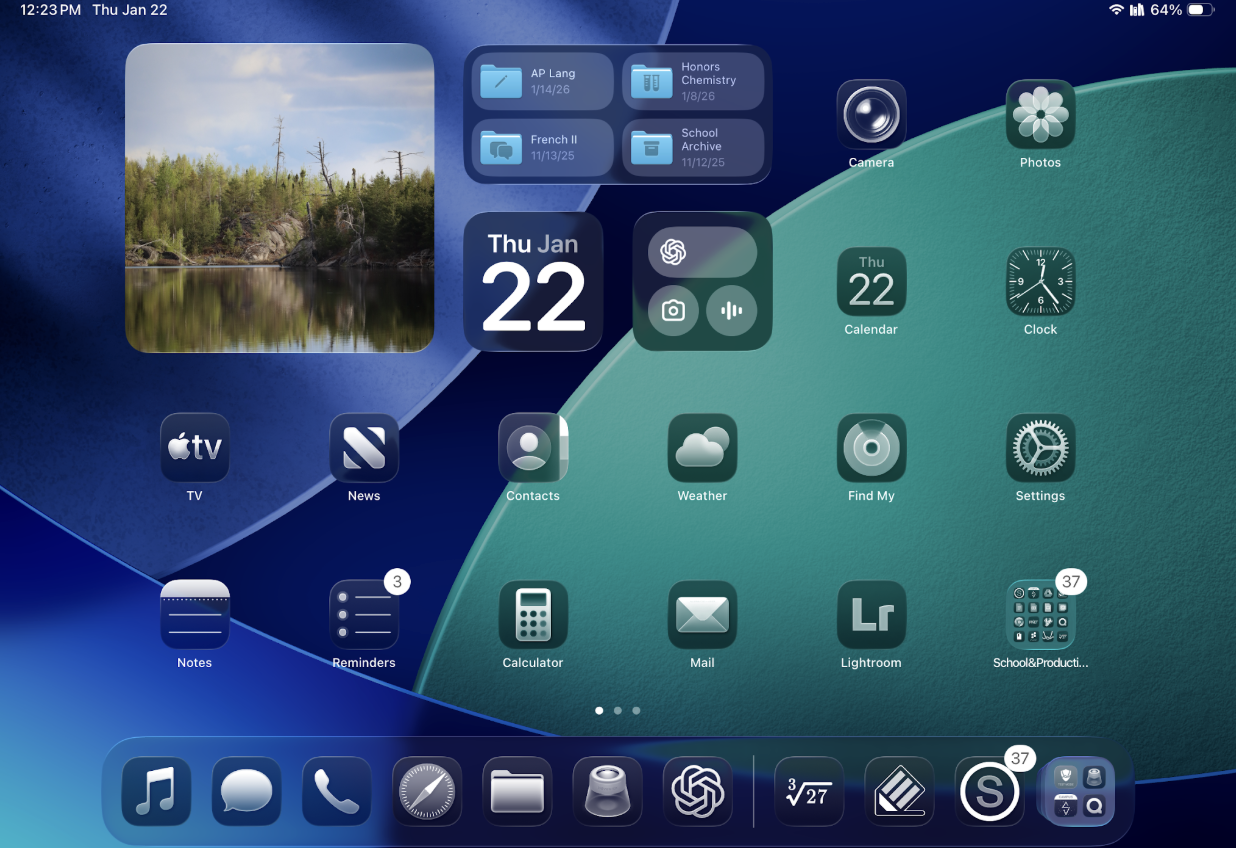
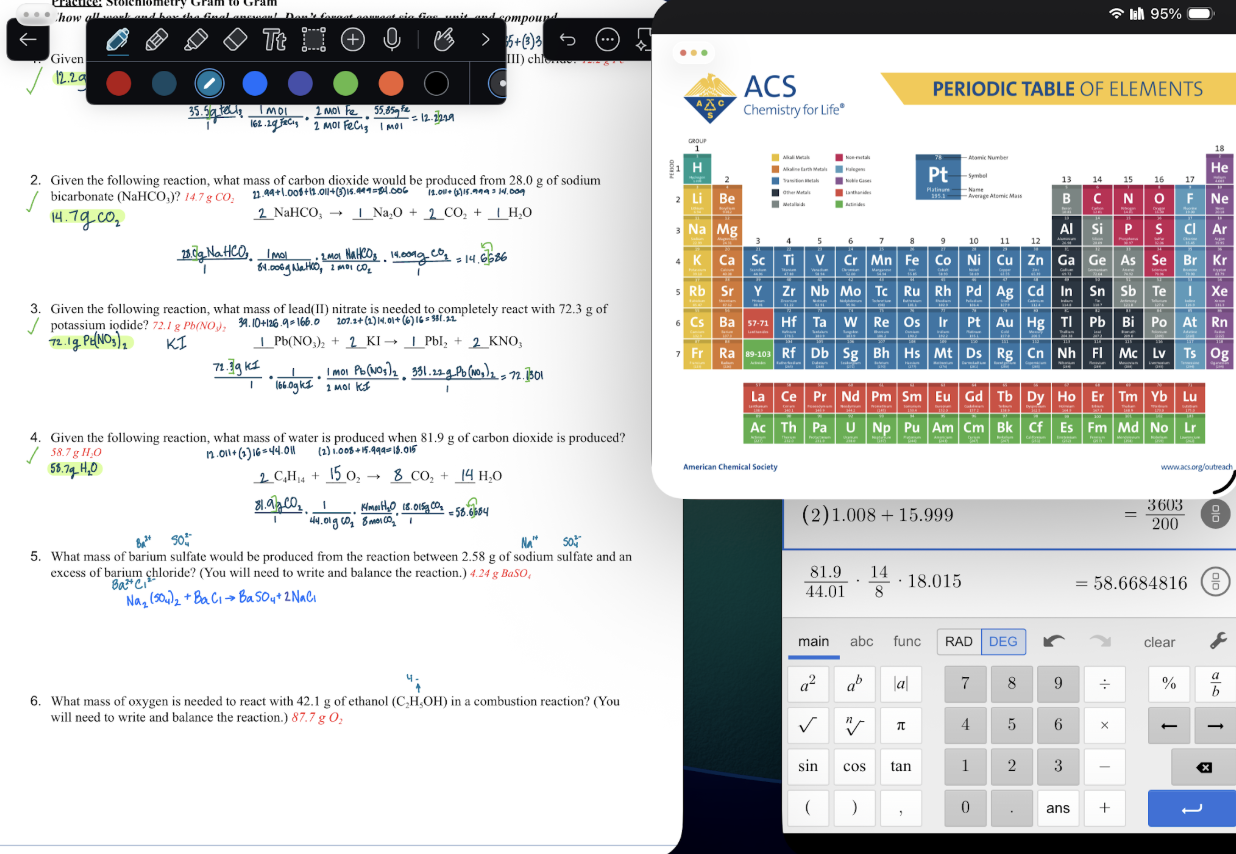
To use new windowing features, open an app and use the four corners of each window to resize it (apps open in fullscreen mode by default, unless you’re using Stage Manager). If you’re having issues with resizing, look for a handle at the bottom right corner of a window to pull from. Then, to move a window, pull the window from the top side, moving it to its desired location. To close, minimize, or expand a window, use the “traffic light” icons at the top right corner of a window. If you prefer a more desktop-like experience, Stage Manager draws even more inspiration from MacOS, allowing users to create groups of windows and retain app position and shape after locking the iPad or opening new apps. Stage Manager has actually existed for a few years, but it was only available on newer iPad models with more powerful M-series chips. With iPadOS 26, Stage Manager is now supported on relatively old iPads, such as the 9th, 10th, and 11th-generation iPads that are provided to students from District 196.
Though Apple optimizes software updates for hardware, the aging iPads provided by the school may still struggle with battery drain after new updates. To solve battery drain problems on iPad, often accompanied by major updates, focus on maintaining battery health and disabling background tasks that may be draining the battery. To keep your iPad’s battery health in good shape, avoid draining the iPad’s battery completely, letting it die. This puts extra strain on the iPad’s lithium-ion battery. Aim to keep your battery level above 30%, and charge as needed.
To prevent background tasks (things iPad does in the background even with apps closed, like iCloud syncing) from causing excessive battery drain, navigate to General in Settings, then Background App Refresh, then disable select apps or all.